0s15s30s60s
live→15s behind
Instant delay, no dropped stream
Turn on 15, 30 or 60 seconds while you're live. The connection to the platform never drops.
Protect your match when you need to, then talk to chat in real time again. No OBS restart, no dropped stream.
v0.3.5 · Free · Windows 10 and 11 · 3.6 MB
 Delay Live
01 — Features
Open it, point OBS at it once, and from then on it's one click. The app handles the rest.
Turn on 15, 30 or 60 seconds while you're live. The connection to the platform never drops.
You only change the server. The key stays in OBS and is never saved by the app.
The same delay applies to all of them at the same time.
Delay LiveTwitchforwards packets · no re-encoding · no GPU
Delay Live only forwards the video OBS already produced. No re-encoding, no GPU usage, no change in stream quality.
New versions arrive inside the app, one click away.
21:30Starts with Windows if you want, and closes to the tray without stopping your stream.
02 — How it works
Set it up once. After that, just open Delay Live before you go live.
A 3.6 MB installer for Windows. Twitch comes enabled with the recommended server.
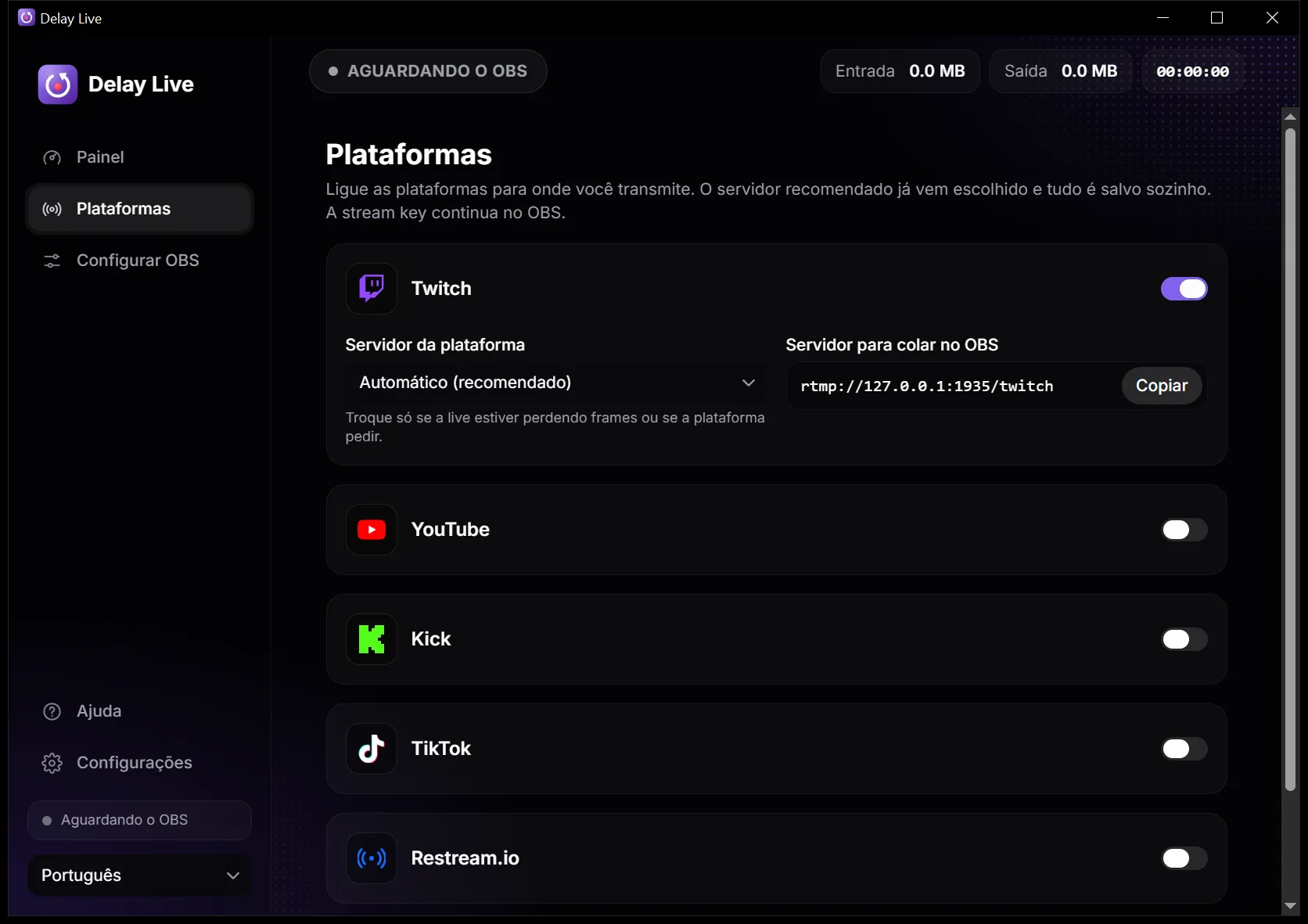
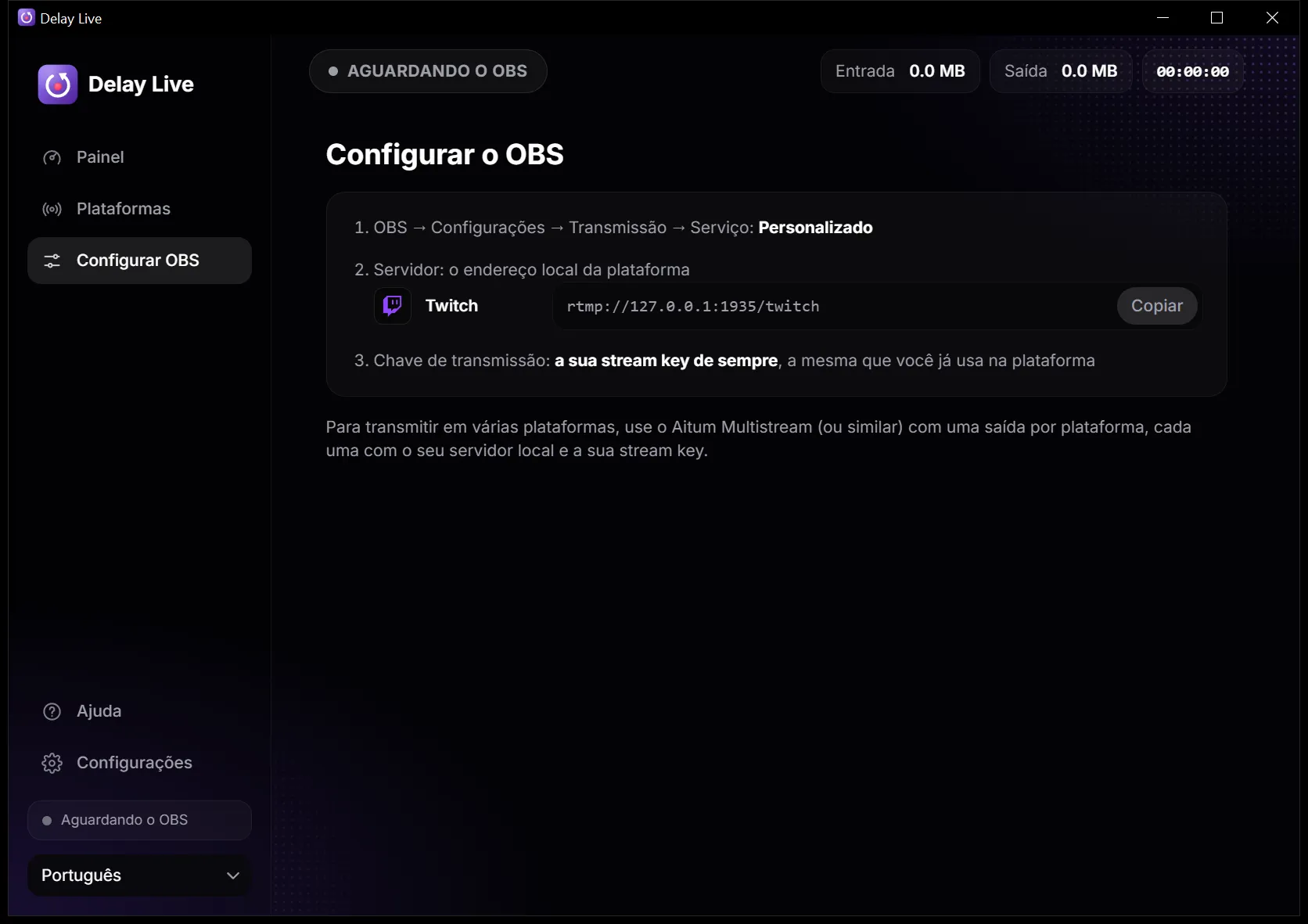
In Settings → Stream, keep your platform's service and pick “Specify Custom Server...” at the bottom of the list. Paste the app's address; your account stays connected and the stream key is the one you already use.
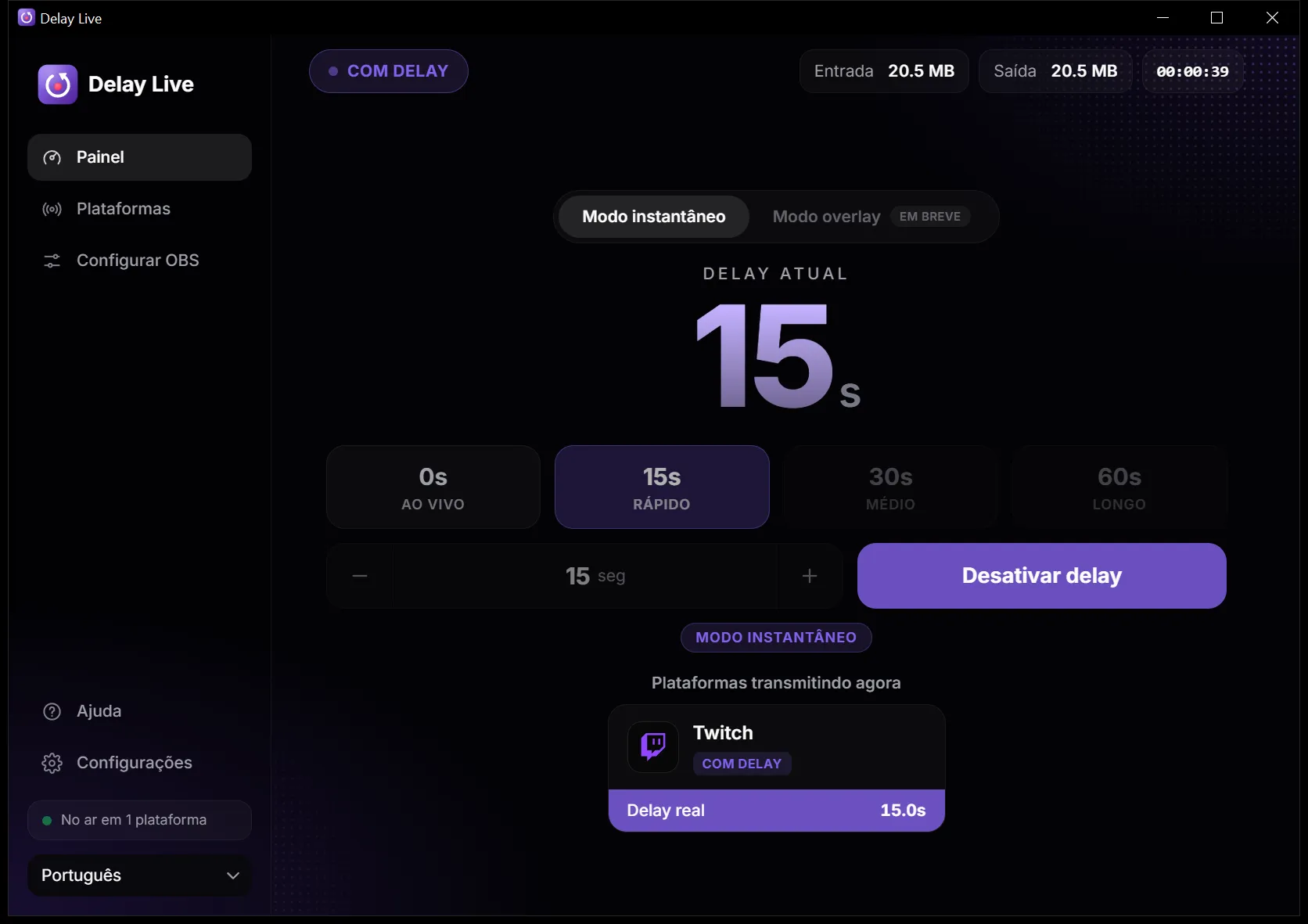
Go live as usual. When you need it, click 15s, 30s or 60s. To go back, click 0s.
03 — Who it's for
You, right now
21:30:40
live
What the stream shows
21:30:10
30s behind
Turn on delay before the match and shut down stream snipers. Nobody sees your position in real time.
Between matches, go back live with one click and talk to chat without the annoying lag.
Protect your team's strategy during rounds and drop the delay for breaks and interviews.
Hide your exact location outdoors or at events, then go back live when it's safe.
04 — Platforms
Works with the OBS you already use. Each platform's recommended server is picked for you.
Streaming to several places with Aitum Multistream? Each output uses its platform's address in the app.
Your stream goes from your PC straight to the platform. Nothing goes through our servers and the key stays in OBS.
The app uses each platform's recommended server. You can change it if your stream drops frames.
05 — Specs
06 — FAQ
Still have questions?
No. Delay Live is a separate app that runs on your PC. OBS streams to it, and it forwards your stream to the platform with the delay you choose.
No. In OBS you only change the Server to the app's address (e.g. rtmp://127.0.0.1:1935/twitch). The key stays the same and lives only in OBS.
Yes, that's the whole point. Turn on 15s, 30s, 60s or any value. To switch values, go back live (0s) and turn on the new one.
When you turn it on, the stream goes back a few seconds and replays that part, then continues delayed. When you turn it off, it jumps to the present. The stream never drops.
Yes. With delay on, viewers see everything late, so your stream can't be used to find where you are in the match.
No. The video OBS produces passes through the app without re-encoding, so it doesn't use your GPU or change quality.
Yes. Each platform has its own address in the app (…/twitch, …/youtube). With Aitum Multistream in OBS, each output goes to its platform's address and the delay applies to all.
Not yet — Windows 10 and 11 only for now.
Yes. Download and use it with no sign-up and no credit card.
The warning shows up because the app is still new to Windows. Click More info → Run anyway. The installer comes straight from the official releases page on GitHub.
Free, lightweight, and your stream key stays put.
v0.3.5 · Free · Windows 10 and 11 · 3.6 MB