Set up Delay Live in 5 minutes
From download to your first live delay. You only do this once.
Download free for Windows1. Install Delay Live
Download the installer (3.6 MB) and open it. Installation is quick and the app opens by itself at the end.
If Windows shows “Windows protected your PC”, click More info → Run anyway. The warning shows up because the app is still new to Windows.
Once installed, Delay Live lives in the tray icon (next to the clock). New versions arrive through the app.
2. Pick your platforms
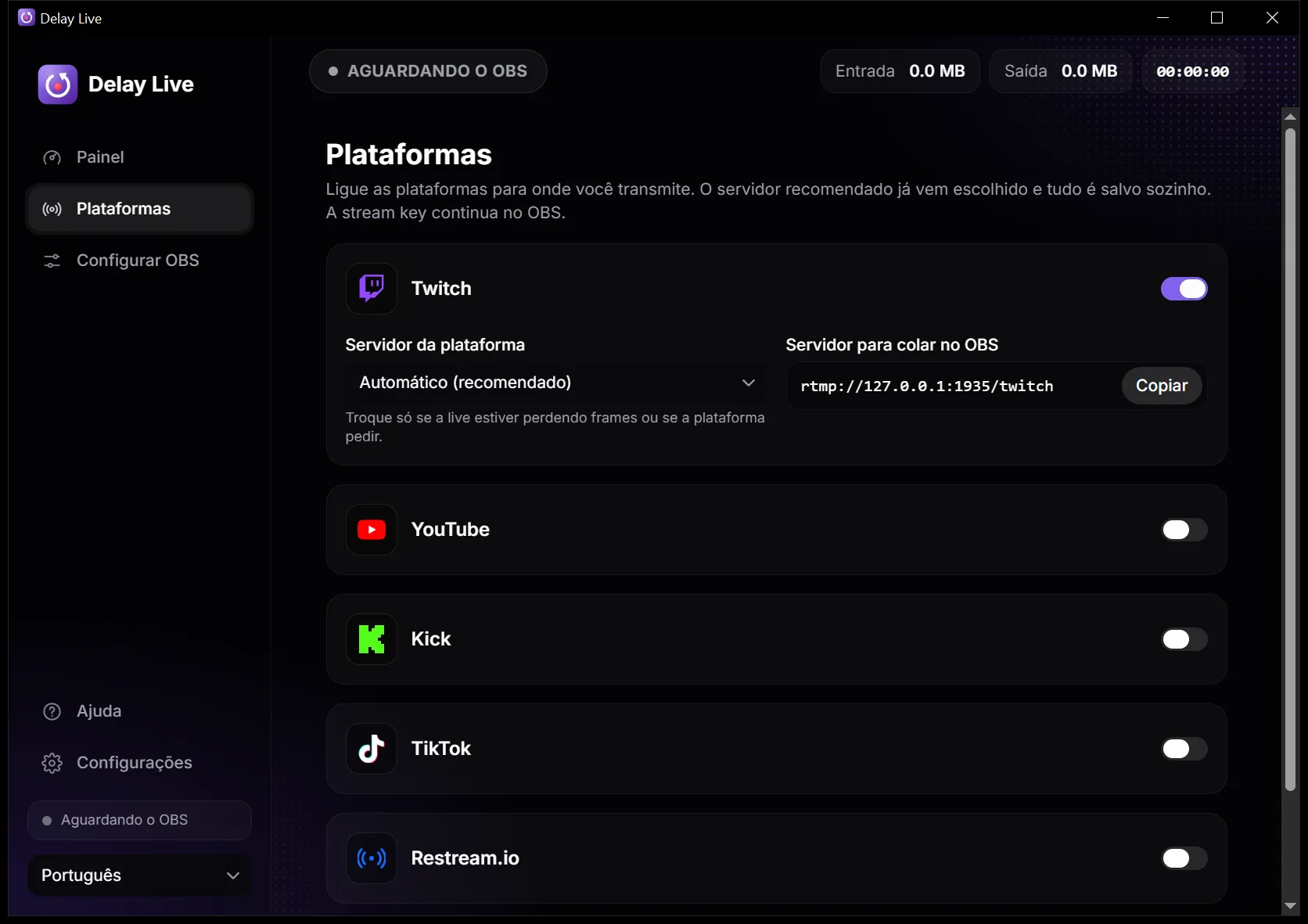
On the Platforms page, turn on the platforms you stream to. Twitch comes enabled.
Each platform's recommended server is already picked and everything saves itself. Only change the server if your stream drops frames or the platform asks you to.
For TikTok, paste the server URL shown in TikTok's LIVE dashboard. It can change between streams.
3. Set up OBS
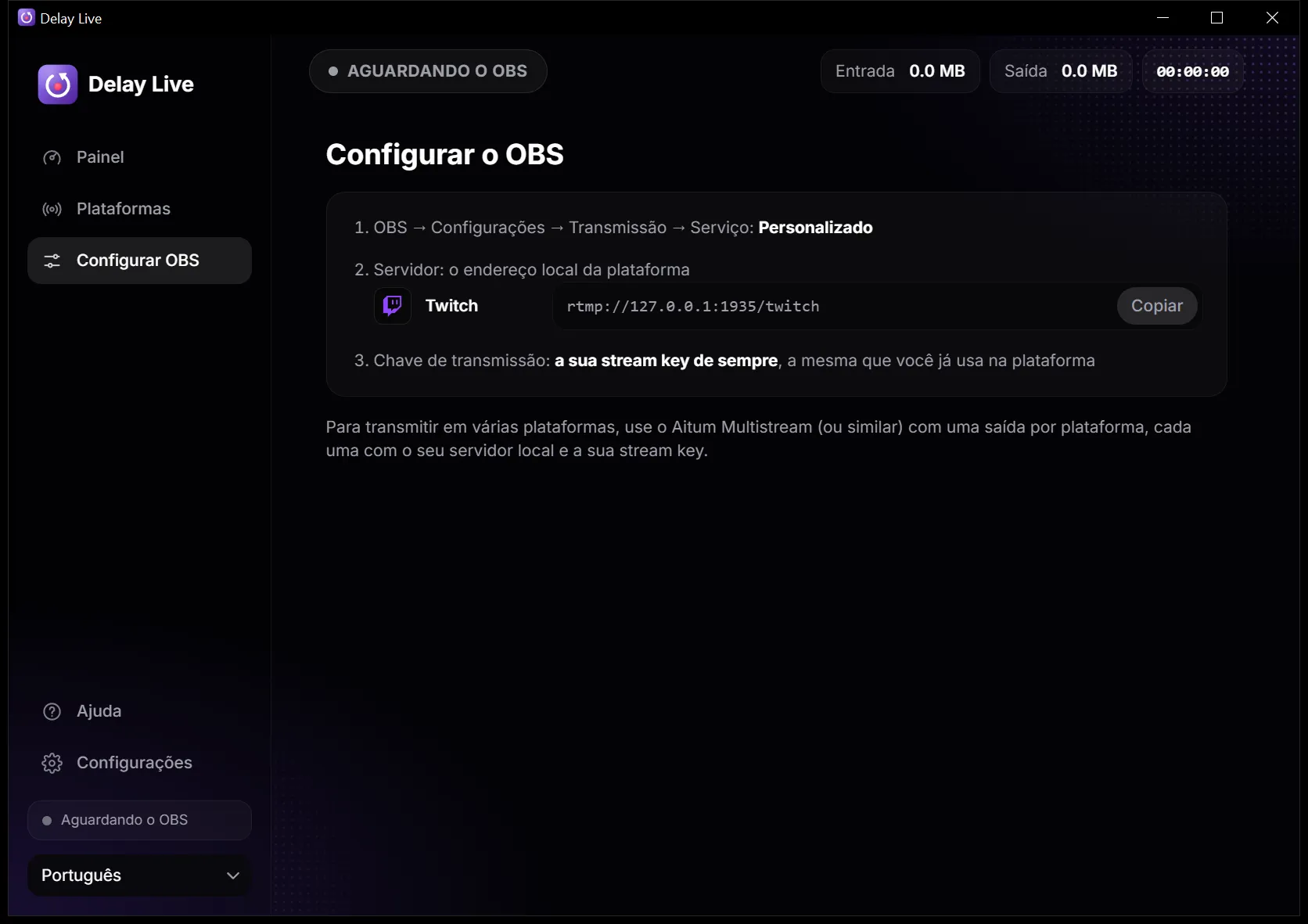
In OBS, open Settings → Stream. On Twitch, YouTube or Restream, keep the platform service (your account stays connected) and, under Server, pick “Specify Custom Server...” at the bottom of the list. On Kick, TikTok or your own RTMP, choose the “Custom...” service.
In the server field, paste the address shown in the app's OBS setup page (e.g. rtmp://127.0.0.1:1935/twitch). Each platform has its own address.
In Stream Key, use the stream key you already have. It stays only in OBS and is never saved by Delay Live.
4. Go live
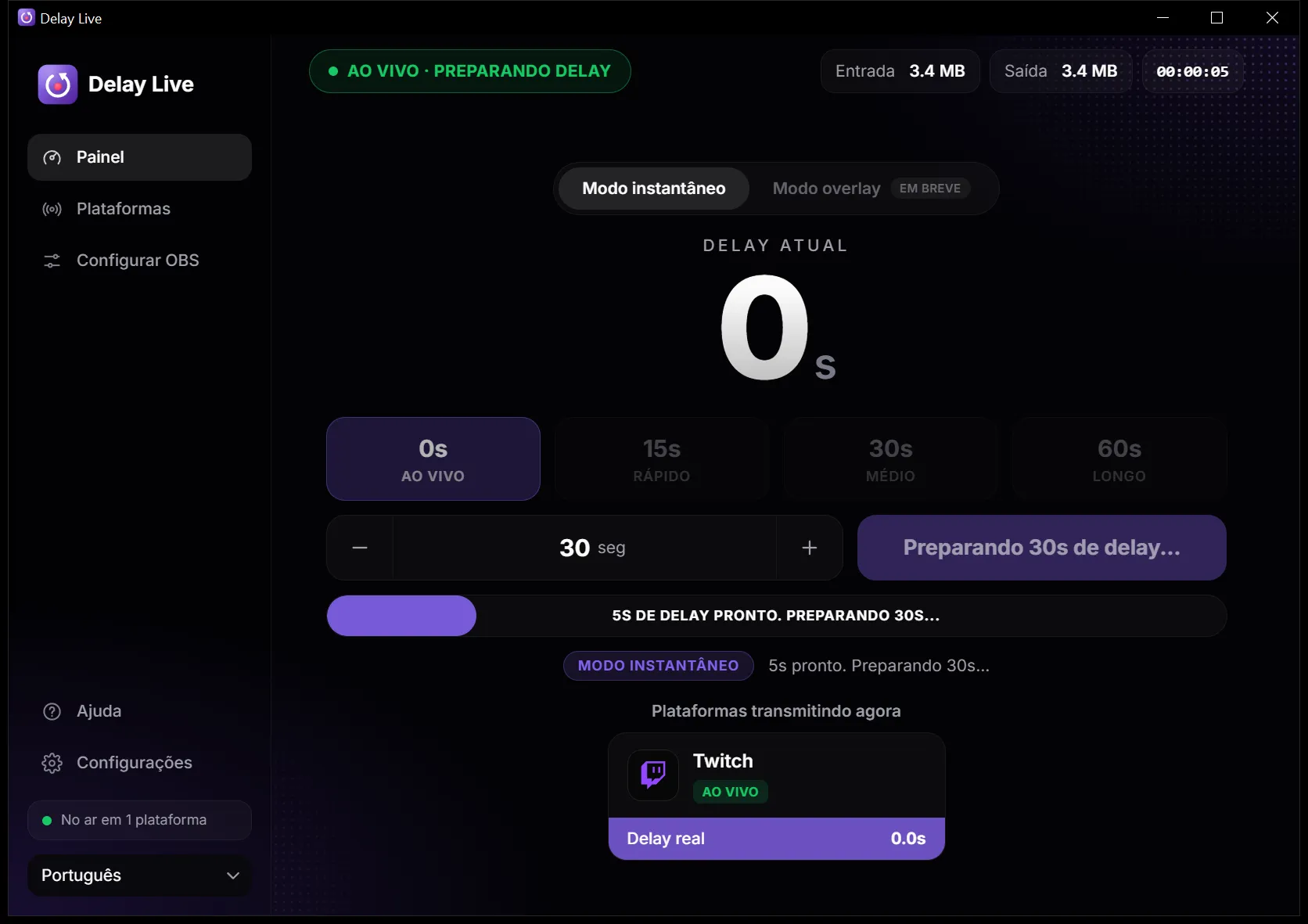
Open Delay Live before you start streaming in OBS. Then just click Start Streaming, as usual.
The Dashboard shows LIVE and starts preparing the delay: the app keeps the last seconds of your stream so delay can turn on instantly. The bar shows how much is ready.
By default, 60s are kept ready. For more, go to Settings → Delay ready before stream (up to 600s).
5. Turn delay on and off
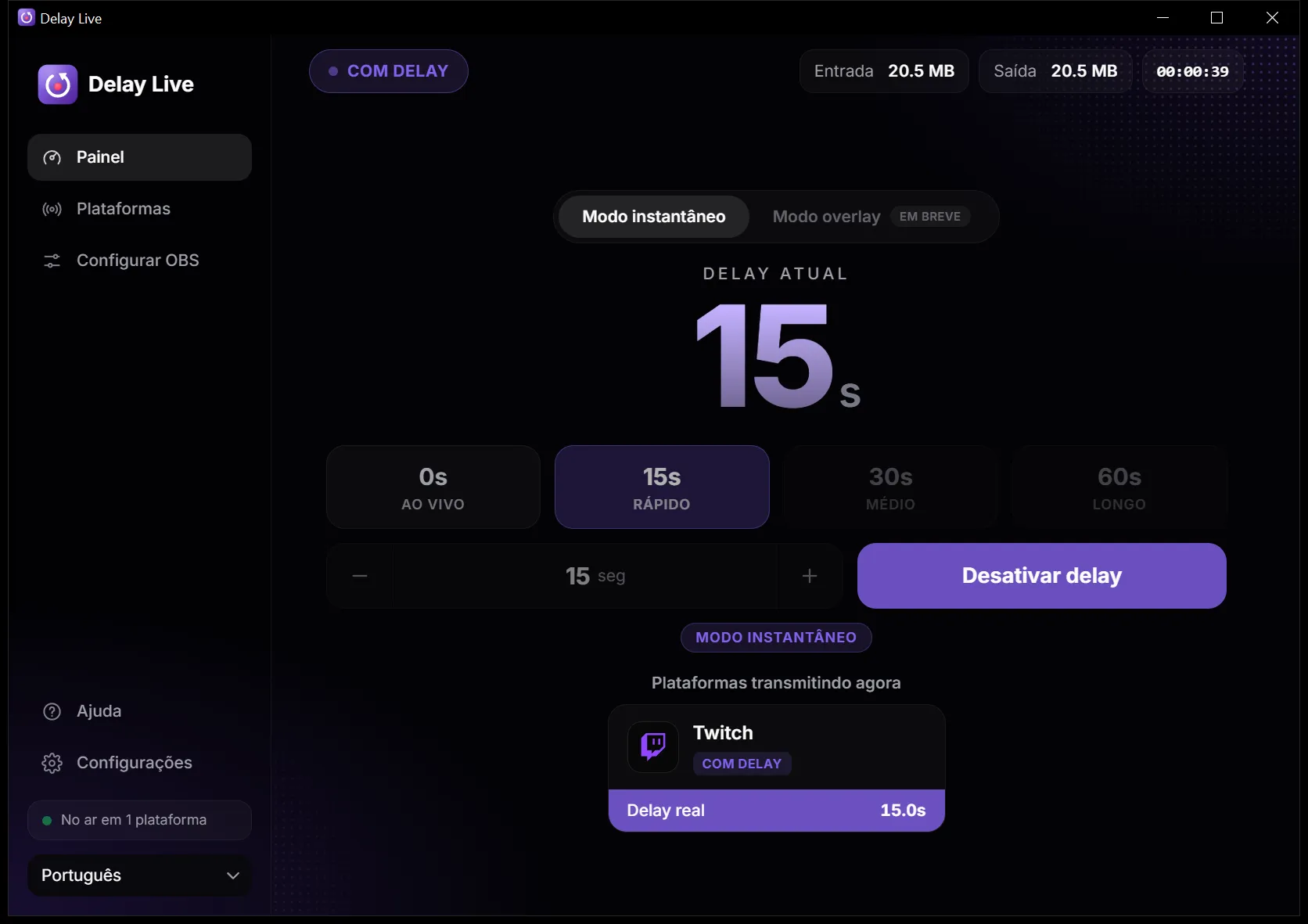
Click 15s, 30s or 60s, or pick another value and click Enable delay. The delay kicks in instantly and your stream doesn't drop.
When you turn it on, viewers see the last few seconds again and from then on everything arrives late. When you turn it off (0s), the stream jumps to the present.
To switch values, go back live (0s) and turn on the new one. That way viewers never see two jumps in a row.
Multistreaming and vertical streams
To stream to several platforms, use the Aitum Multistream plugin in OBS with one output per platform. Each output uses its platform's local address (…/twitch, …/youtube) and that platform's stream key.
The delay chosen on the Dashboard applies to every platform at once.
For vertical TikTok streams, use Aitum Vertical with an output to the …/tiktok address.
OBS on another PC
In Settings → OBS input network, choose Local network (other PC) and restart the app.
In OBS on the other PC, use the address with this PC's IP shown there (e.g. rtmp://192.168.0.10:1935/twitch).
Common problems
- “Port 1935 is in use”
- Another program is already using the port, like another delay app or an RTMP server. Close it and open Delay Live again.
- “The platform refused the stream key”
- Check the stream key in OBS and the server under Platforms. On Twitch you can test without going live by adding ?bandwidthtest=true to the end of the key.
- The platform stays on “Reconnecting”
- The app retries by itself every few seconds, for example when your internet drops. OBS stays connected and the stream resumes as soon as the connection is back.
- OBS won't connect to Delay Live
- Check that the platform is turned on under Platforms and that the end of the server in OBS (/twitch, /kick…) matches it. Delay Live must be open before you go live.
Didn't find what you needed?